
Workflow dashboard
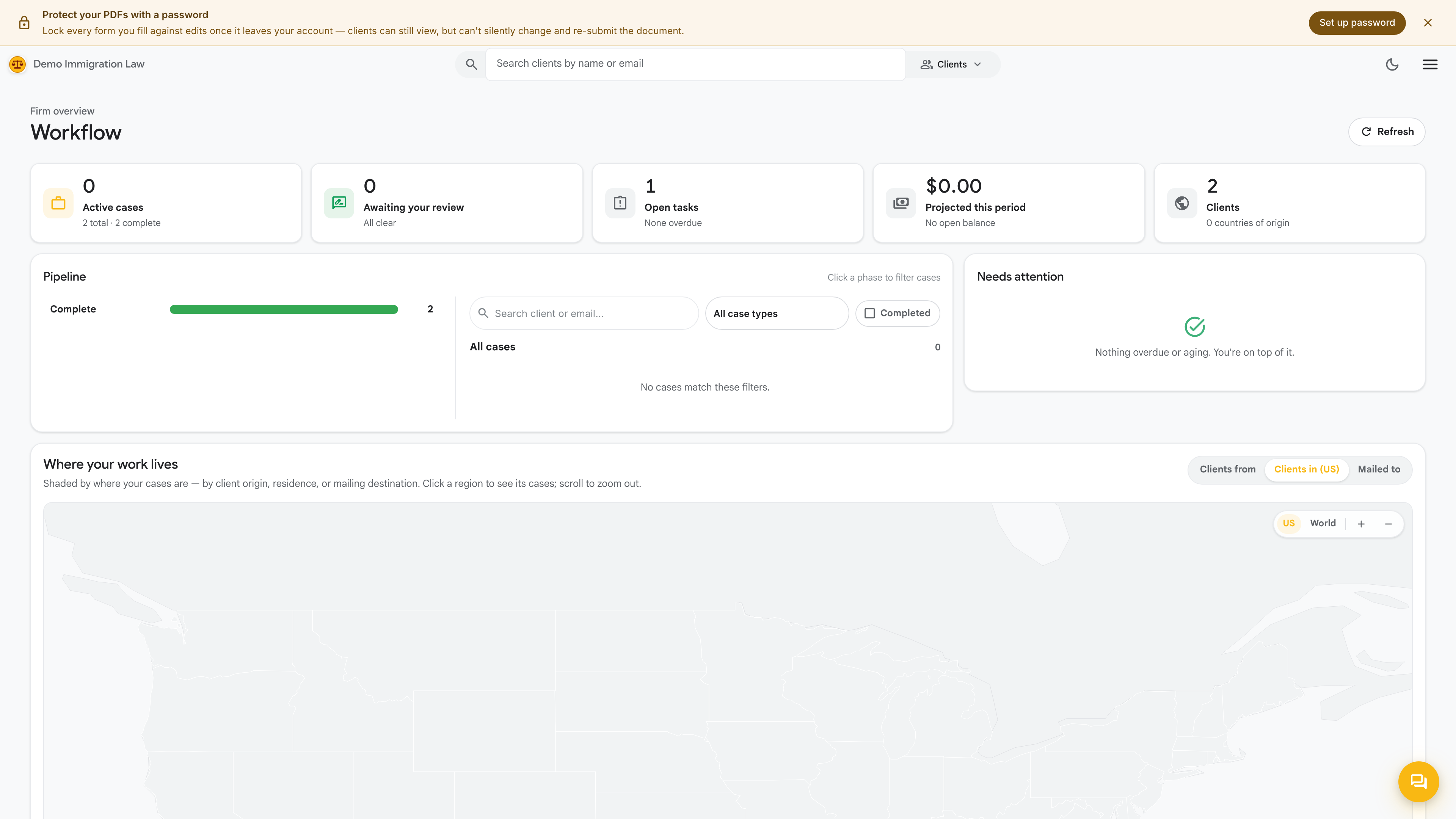
Workflow is the firm’s dashboard — the manager’s-eye view of everything in motion. Where My tasks shows one person’s queue, the Workflow dashboard rolls the whole practice into a single screen so owners and admins can see, at a glance, which cases are moving and which are waiting on someone.
Who sees it
Section titled “Who sees it”The Workflow dashboard is for owners and admins. Attorneys and paralegals work primarily from their own My tasks queue; the dashboard is the view for whoever is running the practice and needs the bird’s-eye picture.
What it rolls up
Section titled “What it rolls up”The dashboard gathers the firm’s activity into one place:
- Jobs — the pieces of work in flight across all your clients, so you can see the pipeline rather than checking clients one by one.
- Tasks — who has what on their plate, so a stalled matter is easy to trace to the queue it’s sitting in.
- Billing status — where the firm’s money stands alongside the work, so operations and revenue read together.
How to use it
Section titled “How to use it”Treat the dashboard as your daily standup, on one screen:
- Spot what’s stuck. A job that isn’t moving is a job sitting in someone’s queue — the dashboard shows you whose, so you can nudge it.
- Balance the load. If one person’s queue is deep and another’s is light, you can rebalance before a deadline becomes a problem.
- Catch deadlines early. Jobs surface with the deadlines set when they were created, so nothing sneaks up on you.
Was this page helpful?
Thanks — noted.