

Orientation
Today’s job is just to get comfortable with where things live. By the end of this page you’ll know the layout, you’ll have opened every part of the nav menu, and the workspace will feel like yours.
Signing in
Section titled “Signing in”Your workspace lives at your firm’s own branded host — not a generic
vendor address. Go to <yourhost>/login (for the demo firm that’s
demo.folaform.com/login), enter your email and password, and you land
on your personal workspace.
The client-search topbar
Section titled “The client-search topbar”After signing in, notice the topbar across the top of the workspace:
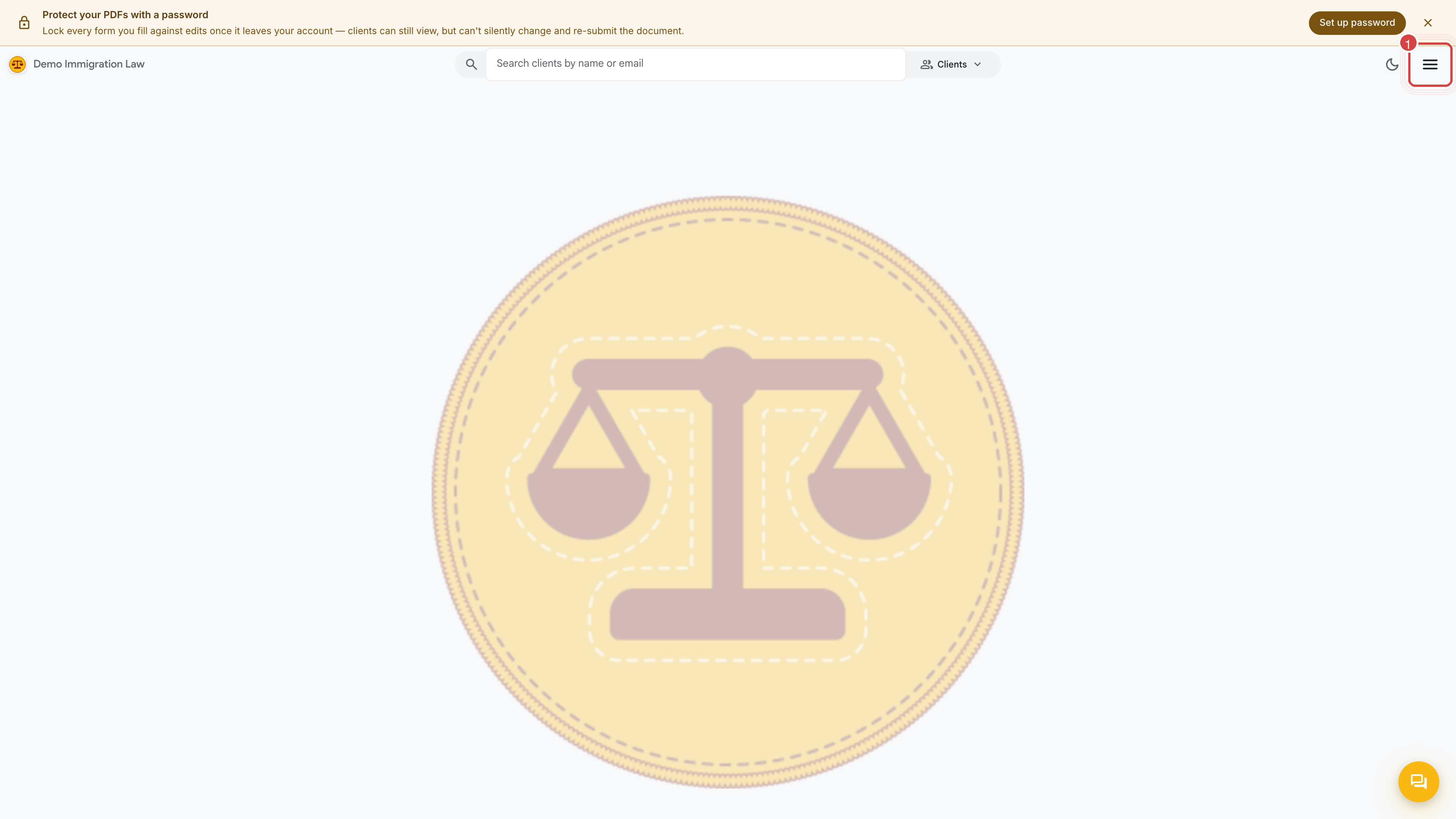
- Your firm’s name and logo sit at the top-left — this is your workspace, white-labeled to your brand.
- The search box is scoped to clients by default. Start typing a client’s name to jump straight to their record.
- A dark/light theme toggle and the menu button sit at the top-right.
Opening the nav menu
Section titled “Opening the nav menu”Click the menu button in the top-right. The full navigation fans out:
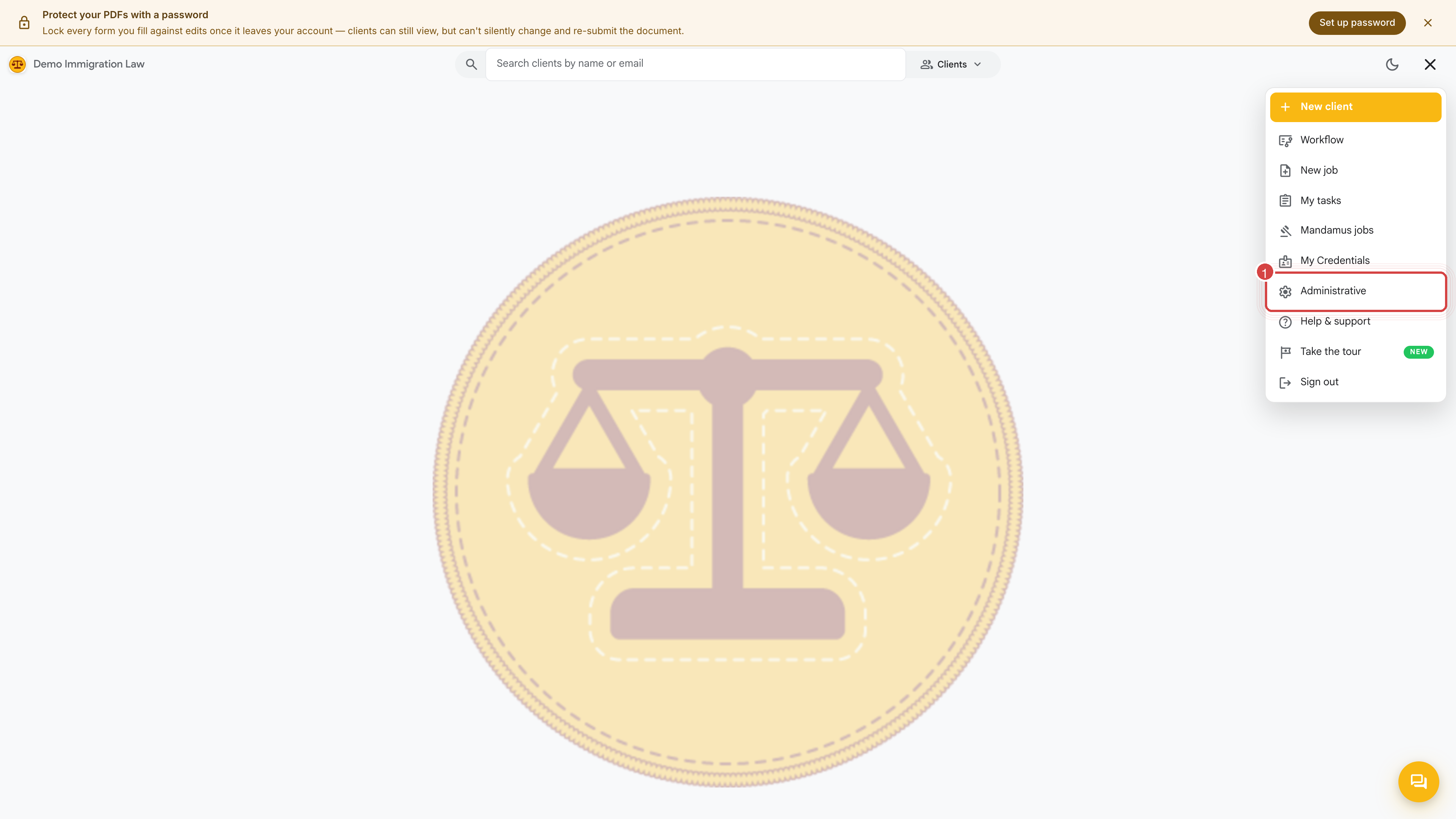
Every item, and what it’s for:
- New client — the fastest way into the add-a-client flow.
- Workflow — the firm’s dashboard of cases, jobs, and tasks in motion (owner/admin — see below).
- New job — start a piece of work (a filing package, a review) on a client.
- My tasks — your personal queue: intake reviews, questionnaires routed to the firm, work awaiting your sign-off.
- Mandamus jobs — the dedicated queue for federal-court mandamus matters.
- My Credentials — bar numbers, contact info, and anything that flows into form signature blocks. We fill this out in Credentials.
- Administrative — firm-wide settings: organization, members, roles, templates, and billing.
- Help & support — reach the support desk and browse guidance.
- Take the tour — a guided in-product walkthrough (see the end of this page).
The Workflow dashboard
Section titled “The Workflow dashboard”Owners and admins get a Workflow dashboard — the firm-wide rollup of what’s in flight:
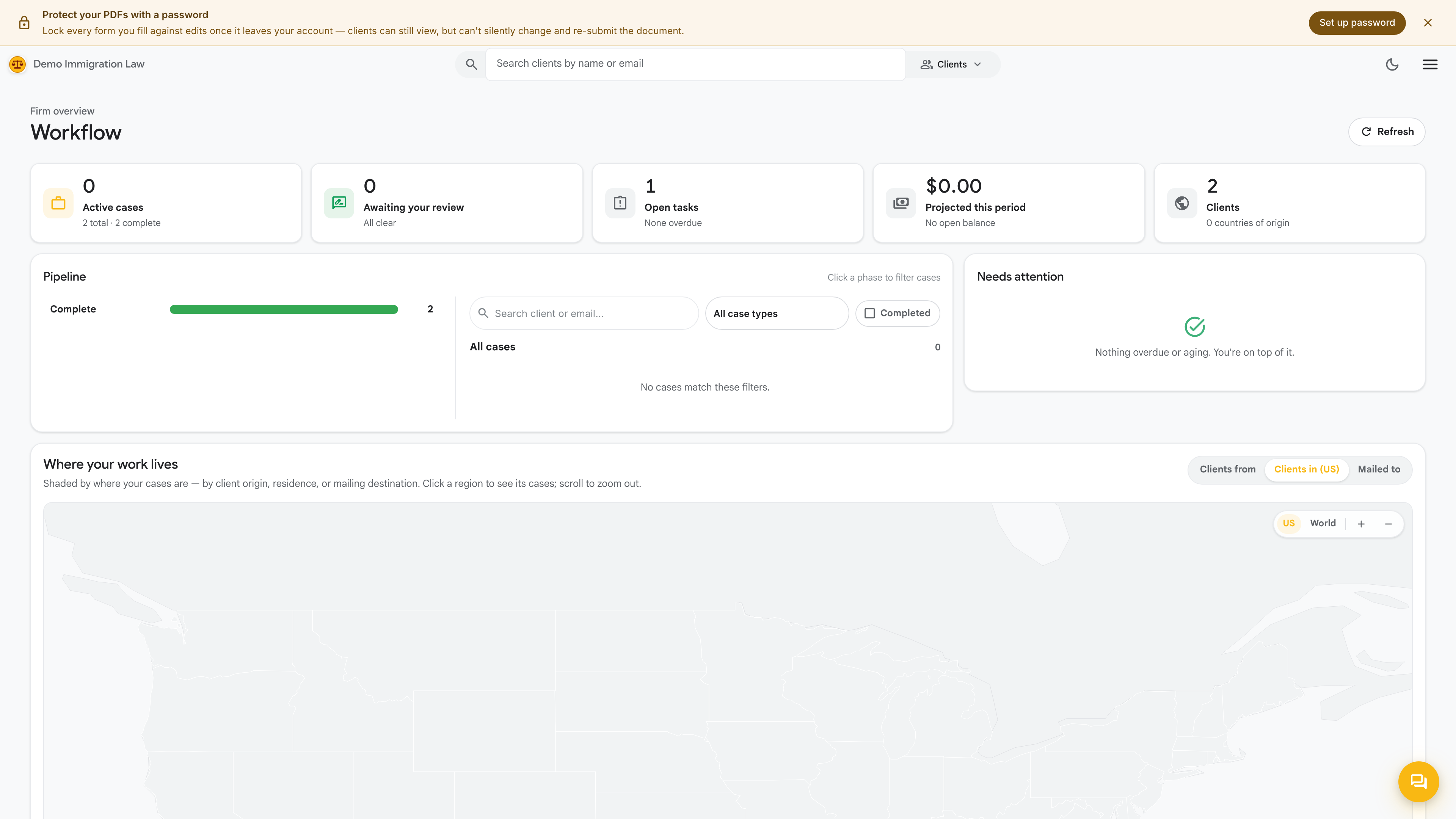
It gathers jobs, tasks, and billing status into one view so you can see, at a glance, which cases are moving and which are waiting on someone. Attorneys and paralegals work primarily from My tasks; the Workflow dashboard is the manager’s-eye view.
The theme toggle
Section titled “The theme toggle”The sun/moon toggle in the topbar switches the whole workspace between light and dark. It’s a per-person preference and sticks to your account, so set it however you read best — it won’t change what your teammates or clients see.
Take the tour
Section titled “Take the tour”When you want a guided pass over the live workspace rather than a doc, open Take the tour from the menu. It highlights each surface in place, right on your own data.
What’s next
Section titled “What’s next”That’s orientation. Next, invite your team and set their roles.
Was this page helpful?
Thanks — noted.