

Emails tab
The Emails tab is the running record of your firm’s email correspondence with this one client. Every message the workspace sent on your behalf — and every reply that came back — is threaded here, so anyone on the team can see the full conversation without digging through a personal inbox.
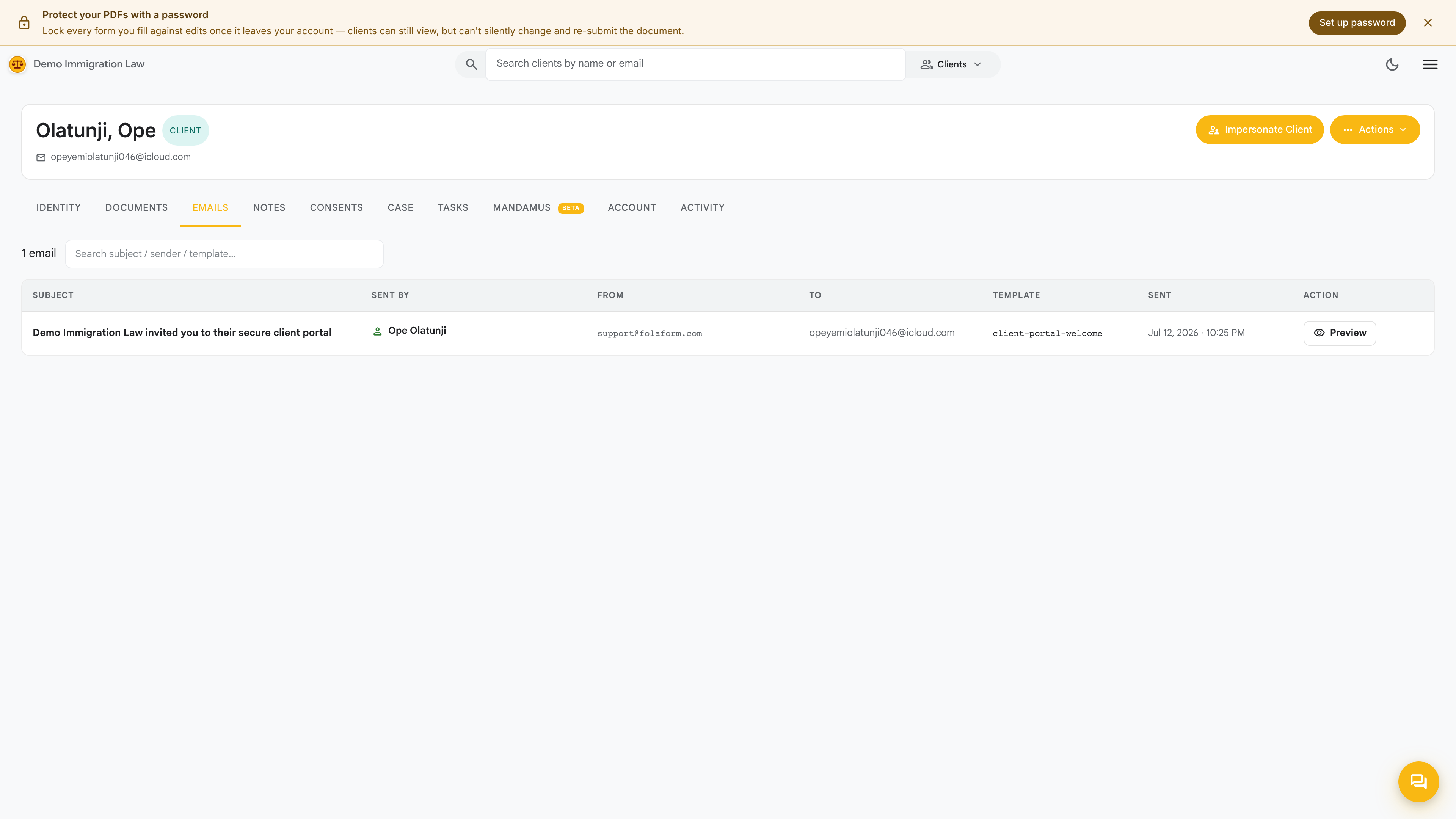
What shows up here
Section titled “What shows up here”- Emails the workspace sent — intake invitations, document requests, signature requests, and anything you compose from this tab. All go out under your firm’s brand.
- Client replies — responses to those messages thread back into the same conversation.
- Delivery status — each message shows whether it was sent, delivered, opened, or bounced.
Composing a message
Section titled “Composing a message”Click Compose to open the editor. You can:
- Start from a template — your firm’s email templates (managed under Administrative → Email & consent templates) pre-fill the subject and body, already carrying your brand voice and letterhead.
- Write freely — skip the template and type your own message.
- Insert client details — template placeholders fill in the client’s name and matter automatically.
- Attach a document — pull any file from this client’s Documents vault into the message rather than re-uploading from your computer.
Send, and the message lands in the log with a delivery status. When the client replies, the response threads back here.
Reading a thread
Section titled “Reading a thread”Click any conversation to expand it. You’ll see the full back-and-forth in order, each message stamped with sender, recipient, and time. Use the thread view to catch up on where a matter stands before you call or file.
When a message doesn’t arrive
Section titled “When a message doesn’t arrive”A few common reasons a client says they never got an email:
- It bounced. Check the delivery status on the message — a bounce means the address is wrong or the mailbox is full. Confirm the email on the Identity tab.
- It went to spam. Ask the client to check their spam folder and add your firm’s sending address to their contacts.
- The wrong address is on file. Fix it on the Identity tab, then resend.
Was this page helpful?
Thanks — noted.