

Members & roles
Three settings pages work together to control who’s on your team and what each person can do: My Org Members (the roster), Roles (the permission sets), and Groups (people who hold roles together).
My Org Members
Section titled “My Org Members”Open Administrative → My Org Members.
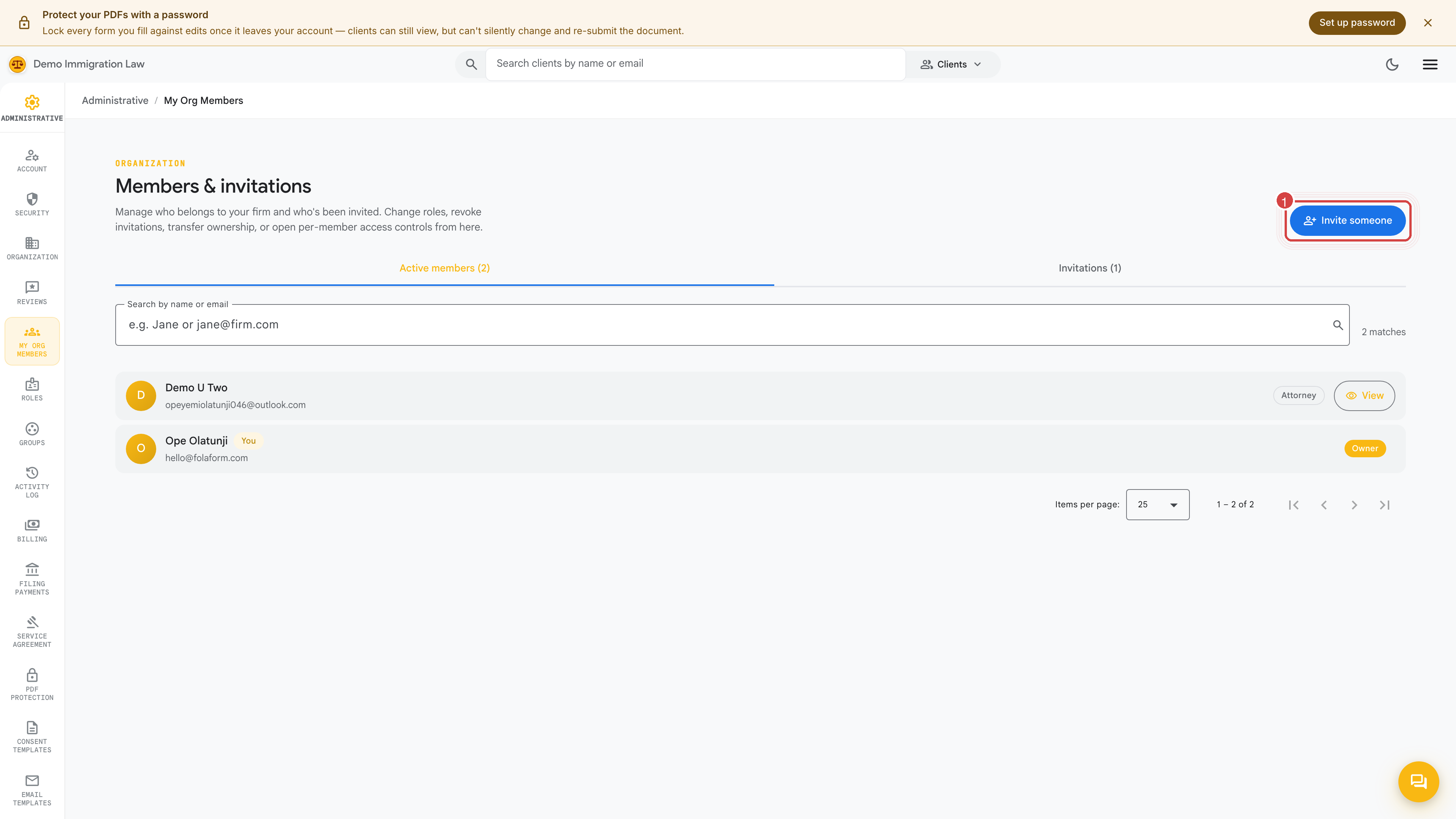
You’ll see the current roster and a button to invite new people. Each row shows a member’s name, email, and role, and opens their detail for editing.
Inviting someone
Section titled “Inviting someone”Click Invite and provide:
- Email address — where the invitation goes.
- Role — the permission set for this person (see below).
- An optional welcome note for the invitation email.
The workspace sends the invitee a magic link — a one-time sign-in link to their email. They click it, set up their account, and land on their own personal workspace under the role you chose. No shared passwords, no manual account creation on your side.
Editing a member
Section titled “Editing a member”Open a member’s row to change their details or, as an admin, fill in their credentials on their behalf if they haven’t logged in yet. The member can still edit their own record later — admin edits don’t lock it.
Removing access
Section titled “Removing access”To revoke a person’s access, open their row and remove them (or revoke the role that grants access). They lose their sign-in to the firm immediately, and the change is recorded in the Activity log.
Open Administrative → Roles to review the permission sets you can assign. Each role states, in plain language, what it grants and who currently holds it. The built-in firm roles are:
- Owner — everything, including billing and ownership transfer. One per firm.
- Admin — everything except billing and ownership transfer.
- Attorney — manage cases, sign filings, firm-wide client list.
- Paralegal — prepare cases, draft filings, edit profiles.
- Viewer — read-only across the firm.
Change a person’s role inline from this page, or from their row on My Org Members.
Custom roles
Section titled “Custom roles”When none of the built-in bundles fit — say an intake specialist who adds clients and sends questionnaires but never touches billing — define your own role here: a name plus a hand-picked set of firm permissions. Grant it to members like any built-in role. Everyone holding a custom role picks up changes to it immediately.
Groups
Section titled “Groups”Open Administrative → Groups. A group is a set of people that holds roles together. Instead of granting the same role to eight people one by one, grant it once to the group: add a person and they get every role the group holds; remove them and those roles go with them.
Firm groups are scoped to your firm — members come from your roster, and the roles a group holds are firm roles. So “everyone on the intake team gets Paralegal” is a single grant, not eight.
On a member’s detail, roles that arrive through a group are marked as coming via the group’s name. To take them away, remove the person from the group rather than trying to revoke the role directly. Every group change lands in the Activity log alongside every other access change.
Was this page helpful?
Thanks — noted.