

Account tab
The Account tab controls whether this client has their own login to your firm’s client portal — the branded, client-facing area where they can check on their matter, answer questions, and upload documents. This tab is where you invite them, see their access status, and revoke it if you need to.
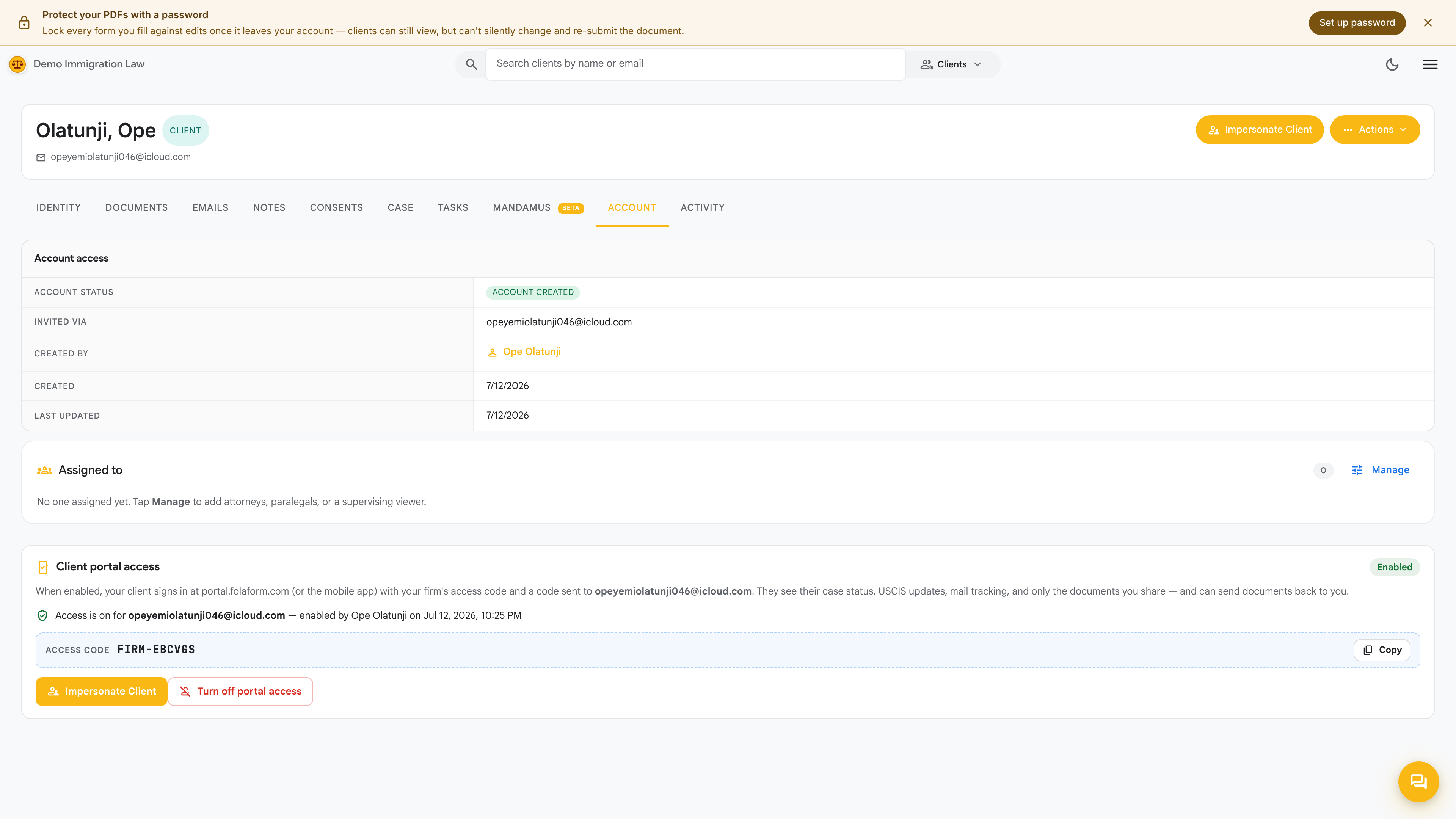
Giving a client portal access
Section titled “Giving a client portal access”Click Invite to portal and confirm the email on file. The client receives a branded invitation to set up their own password. Once they’re in, they can (depending on what your firm exposes):
- See the status of their matter
- Answer questions and complete intake
- Upload documents you’ve requested
- Review and sign the forms and agreements you send
What this tab shows
Section titled “What this tab shows”- Access status — not invited, invited (pending setup), or active.
- Last sign-in — when the client last logged in, if ever.
- Contact email — the address the invitation and portal notices go to. It comes from the Identity tab; fix it there if it’s wrong.
Managing access
Section titled “Managing access”From this tab you can:
- Resend invite — if the client lost the original email or it expired.
- Reset access — send a fresh password-setup link.
- Revoke access — immediately cut off the client’s login. Their file stays intact inside your workspace; only their portal sign-in is disabled. Reversible — re-invite any time.
Was this page helpful?
Thanks — noted.