

Documents tab
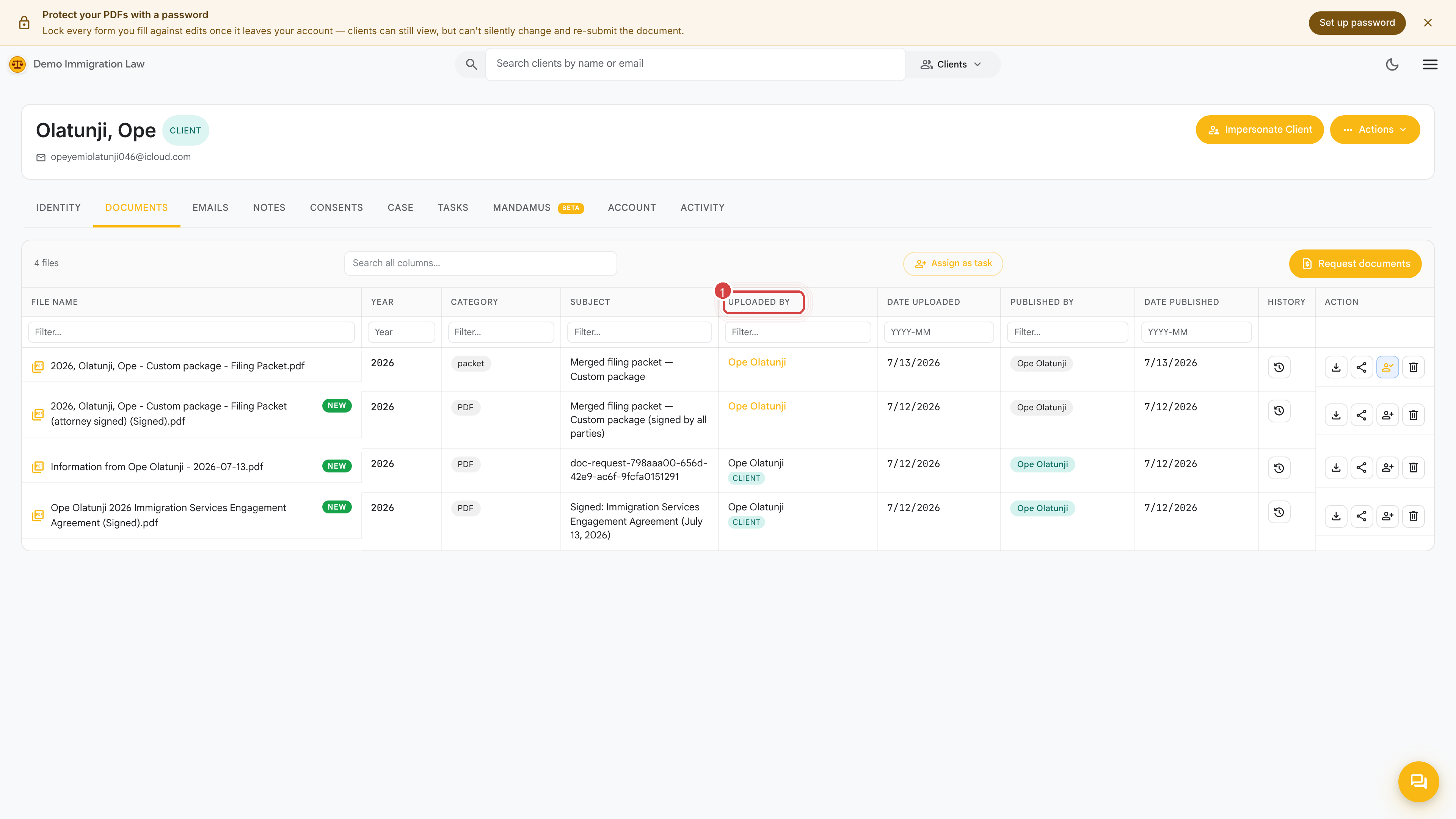
The Documents tab is the central file store for everything tied to this one client. Passports, IDs, evidence packets, finalized forms, signed agreements — all of it lives here, encrypted at rest, scoped to your firm.
Uploading
Section titled “Uploading”Three ways to add a document:
- Drag and drop anywhere on the tab.
- Click Upload and pick the file from your computer.
- Send an intake link — anything your client uploads through the intake form lands here automatically under the “Intake responses” filter.
Accepted formats: PDF, PNG, JPG, HEIC, DOC, DOCX, ODT. Maximum size per file: 25 MB.
Browsing what’s here
Section titled “Browsing what’s here”Use the filter chips at the top to narrow the list:
- All — everything (default)
- Evidence — supporting documents (passport scans, marriage certificates, etc.)
- Forms — finalized PDFs the workspace has rendered for this client
- Consents — signed engagement letters and retainers
- Intake responses — documents the client submitted through their intake link
- Other — anything that doesn’t fit the above
The search box matches the document’s filename. Rename a file (row action below) if you want to find it later by something other than what it was uploaded as.
Row actions
Section titled “Row actions”Each document row carries:
- Preview — opens an inline viewer (PDFs and images; Office docs download to your computer).
- Download — pulls the original file.
- Rename — change the displayed filename. The original is preserved.
- Move to type — recategorize (e.g. you uploaded a passport under “Other” by mistake — move it to “Evidence”).
- Delete — soft-deletes for a grace window, then permanent. Recoverable during the window from the recently-deleted view.
What lands here automatically
Section titled “What lands here automatically”A few documents show up on this tab without you doing anything:
- Every finalized form — when you finalize a draft (clean PDF, no watermark), it drops here under “Forms”.
- Every signed agreement — engagement letter, retainer, translator certificate — saves here under “Consents” the moment the client signs.
- Every signed form — when an e-signature request completes on the Case tab, each signed form and the merged print copy save here.
Privacy & security
Section titled “Privacy & security”Everything you upload is encrypted at rest. Only members of your firm who have access to this client can see the documents. If a member leaves your firm, revoke their access under Administrative → Members & roles and they immediately lose visibility on every client, including this one’s documents.
Was this page helpful?
Thanks — noted.