

Administrative
Administrative is where you run the firm itself rather than an individual case: your brand, your team and their access, your billing, your agreements and templates, and the firm-wide audit trail. Open it from Administrative in the nav menu.
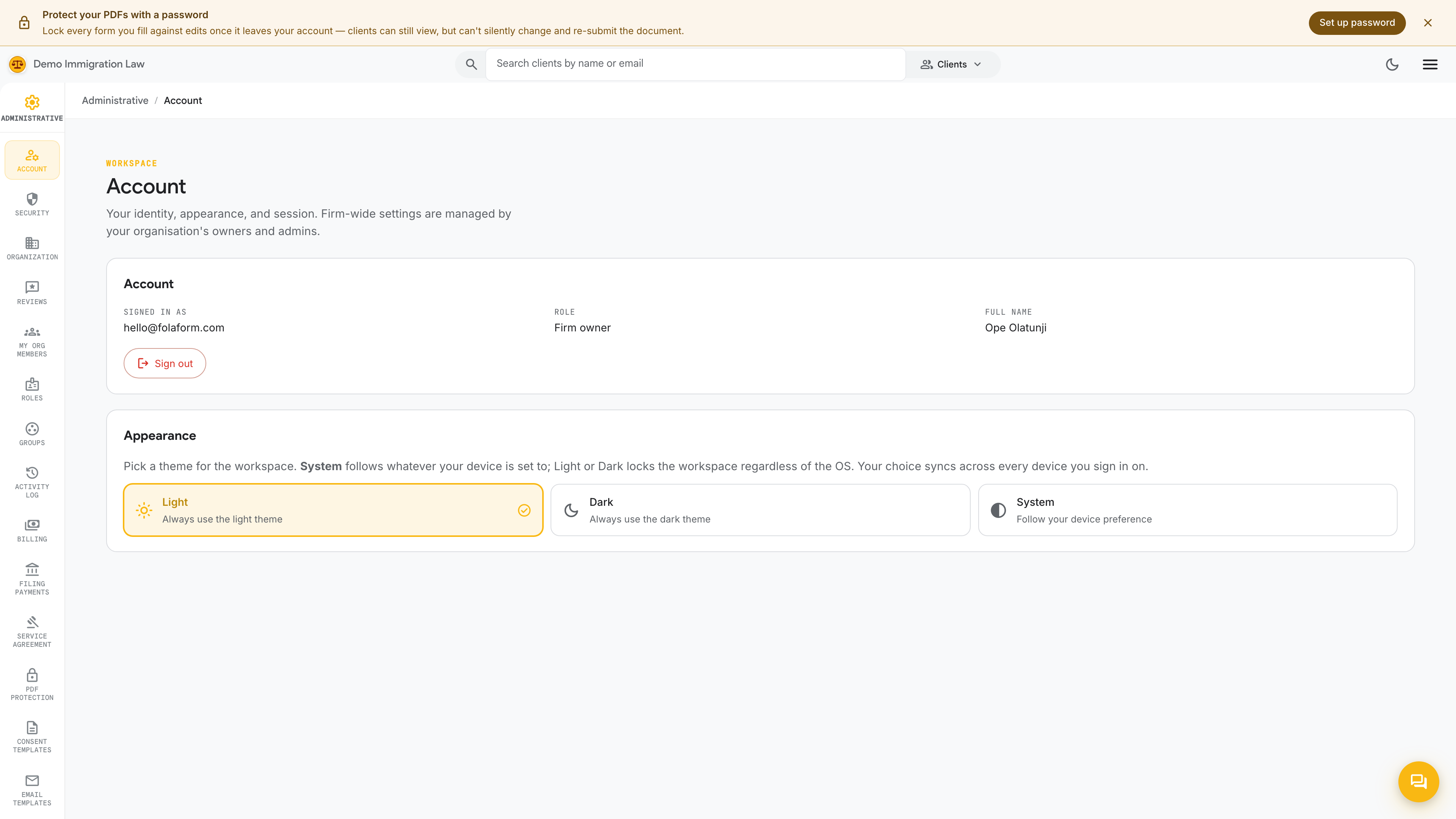
Settings open on your Account page, with every section listed down the left rail. Click any entry to switch pages; the rail stays put so you can move between sections without leaving the settings area.
What’s in the left rail
Section titled “What’s in the left rail”- Account — your own profile, name, email, and personal preferences for this workspace.
- Security — password, two-factor, passkeys, trusted browsers, and session behavior for your sign-in.
- Organization — firm name, logo, letterhead, brand colors, and the branded host your workspace runs on.
- Reviews — how the firm’s internal review step is configured for filings before they go out.
- My Org Members — the firm roster: invite people, edit them, and remove access.
- Roles — the permission sets you assign to members, plus any custom roles your firm defines.
- Groups — sets of people that hold roles together, so you grant access once instead of person by person.
- Activity log — the firm-wide audit trail of who did what, when.
- Billing — your firm’s own plan, payment method, and invoices.
- Filing payments — the firm’s ACH details used to pay USCIS filing fees.
- Service agreement — the client service agreement your clients sign, and its unsigned copy for review.
- PDF protection — the password applied to every PDF the workspace generates.
- Consent templates — the consent documents clients sign, branded to your firm with merge fields.
- Email templates — the outbound emails the workspace sends clients, in your firm’s voice.
Who sees what
Section titled “Who sees what”The settings area is role-gated — what you can open depends on the role your firm gave you.
- Owner sees everything, including Billing and ownership transfer.
- Admin sees everything except billing and ownership transfer — brand, members, roles, groups, templates, agreements, PDF protection, and the activity log.
- Attorneys and paralegals manage their own Account and Security pages and can read what their role allows, but firm-wide settings (members, billing, brand) stay with owners and admins.
- Viewers are read-only.
Where to go next
Section titled “Where to go next”Setting the firm up for the first time? Start with Organization & brand, then Members & roles. If you just need to change one thing, jump straight to its page from the left rail.
Was this page helpful?
Thanks — noted.